Docker Essentials: How Docker Restart Policies Work and How to Disable Them ?

Hello folks ! Docker containers are an essential part of modern development workflows, but sometimes, an automatically starting container can cause unnecessary overhead when you boot your machine. It is recommended to set an appropriate restart policy for each container to ensure high availability and reduce the risk of downtime in the event of a restart.
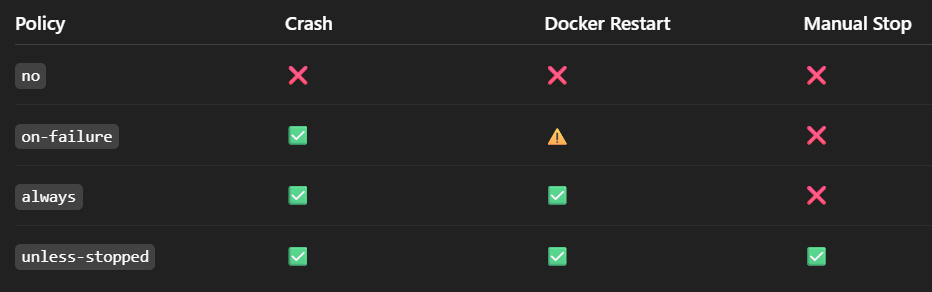
There are several restart policies available in Docker:
1️⃣ no (default behavior) :
Docker will NOT restart the container automatically.
Used cases for this command :
📌 Use case :
Development
Debugging
One-time jobs
docker run --restart=no <container_name_or_id>
2️⃣ on-failure
Docker restarts the container ONLY if it crashes with an error (non-zero exit code).
📌 Use case :
Batch jobs
Scripts
Background workers
docker run --restart=on-failure <container_name_or_id>
we can also limit retries: (set restarts limit )
docker run --restart=on-failure:3 <container_name_or_id>
3️⃣ always
Docker always restarts the container.
📌 Use case :
Web servers (Nginx, API, Backend services)
Long-running apps
docker run --restart=always <container_name_or_id>
4️⃣ unless-stopped
Docker restarts the container unless you explicitly stop it.
📌 Use case
production services
More control than
always
docker run --restart=unless-stopped <container_name_or_id>
Press enter or click to view image in full size
If you want to stop a Docker container from starting automatically, follow these simple steps ⚙️ :
1. Check Running Containers
First, list all containers to identify the one you want to modify:
docker ps -a
2. Inspect the Restart Policy
Disable auto-start by updating the restart policy to no:
docker update --restart=no <container_name_or_id>
3. Update the Restart Policy
Disable auto-start by updating the restart policy to no:
docker update --restart=no <container_name_or_id>
4. Confirm Changes
Verify the updated restart policy:
docker inspect -f '{{.HostConfig.RestartPolicy.Name}}' <container_name_or_id>
5. Reboot and Test
Restart your computer and confirm that the container no longer starts automatically:
docker ps
Re-Enabling Auto-Start (Optional)
If you ever need the container to auto-start again, you can use:
docker update --restart=always <container_name_or_id>
✅ Best Practices :
🧪 Development & debugging → no
⚙️ Batch jobs / workers → on-failure
🌐 Production services → unless-stopped
🚀 Critical always-on apps → always
With these steps, you have full control over which containers start automatically on your machine. Happy coding! ⚡️
